Zoom recordings in Hebrew: transcript and summary
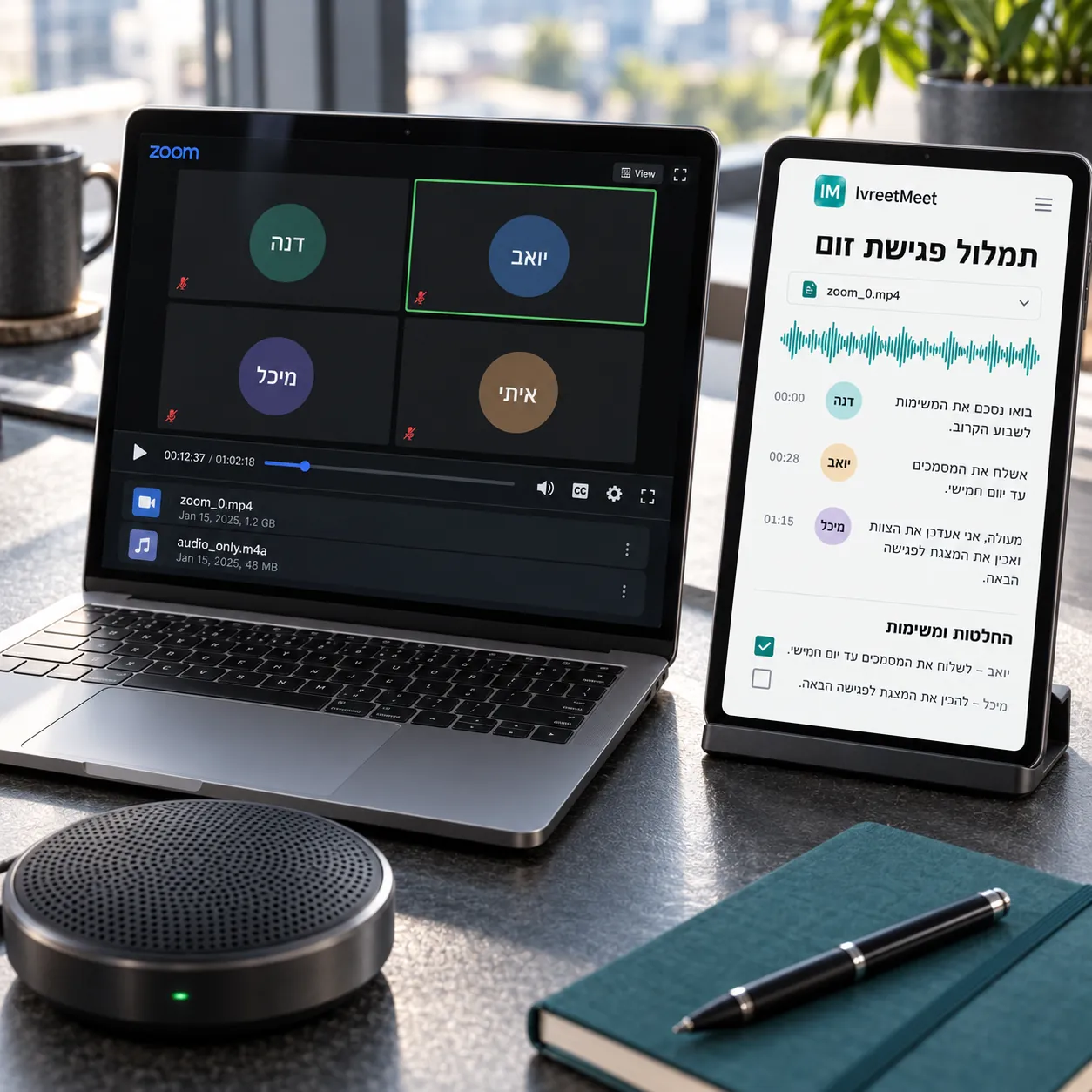
Getting a Hebrew transcript of a Zoom meeting is simple: record the meeting in Zoom and upload the file, or, on the Pro plan, paste the meeting link and let the IvreetMeet assistant join and record it, and get a Hebrew transcript split by speaker plus minutes with decisions and action items. Files up to 4 GB.
The short version
- 1Turn recording on, or send the assistant. Local or cloud recording in Zoom, or, on the Pro plan, paste the meeting link in IvreetMeet and the assistant records it for you.
- 2Let Zoom finish the file. A local recording is converted when the meeting ends; do not close the laptop mid-conversion.
- 3Upload the audio or the video. M4A, MP4 or anything else on the list, up to 4 GB.
- 4Name the speakers once. The names then appear across the transcript and in the minutes.
- 5Send the minutes. Key points, decisions and action items, as a PDF over WhatsApp or email, or as a view link.
Recording settings that change the transcript
| Setting | Why it matters |
|---|---|
| Record a separate file per participant | Each voice arrives on its own track: the best possible input |
| Original sound / no aggressive noise suppression | Heavy suppression can swallow quiet speech along with the noise |
| Headsets rather than laptop microphones | Distance is the single biggest factor in accuracy |
| Do not re-compress before uploading | Compression removes exactly the detail the model needs |
Many participants
On Zoom every participant speaks into their own microphone, which is exactly what speaker separation likes. For a large call, separate per-participant recording gives the cleanest possible input, and one person speaking at a time keeps every sentence with its speaker. Name the speakers once and the names run through the whole transcript.
Frequently asked questions
Does Zoom transcribe Hebrew?
Zoom offers live captions in several languages, depending on your plan and settings. For a full Hebrew transcript split by speaker and a Hebrew summary with decisions and action items, record the meeting or (on the Pro plan) send the IvreetMeet assistant, and IvreetMeet does the rest.
Local recording or cloud recording?
Either works. A local recording writes an M4A audio file and an MP4 video to your computer when the meeting ends; a cloud recording is downloaded from the Zoom web portal afterwards.
Where is the file on my computer?
By default in a Zoom folder inside Documents, in a subfolder named after the meeting\'s date and time. Upload the audio file if there is one; video works too.
Can I record each speaker separately?
Yes. Zoom can be set to record a separate audio file for each participant. That is the cleanest input a transcription system can get, because nobody\'s microphone hears the room.
What about Google Meet and Teams?
The same route. Record in Meet or Teams, download the file, upload it here. Or paste the Meet or Teams link: the IvreetMeet assistant asks to join, the host admits it, and it records the meeting for you.
Try it on your own recording
IvreetMeet transcribes and summarizes Hebrew meetings. The free plan covers 7 meetings and 120 minutes per organization each month.
Start free